Google Workspace apps integration
Simplify communication in Gmail and Google Calendar with RingCentral
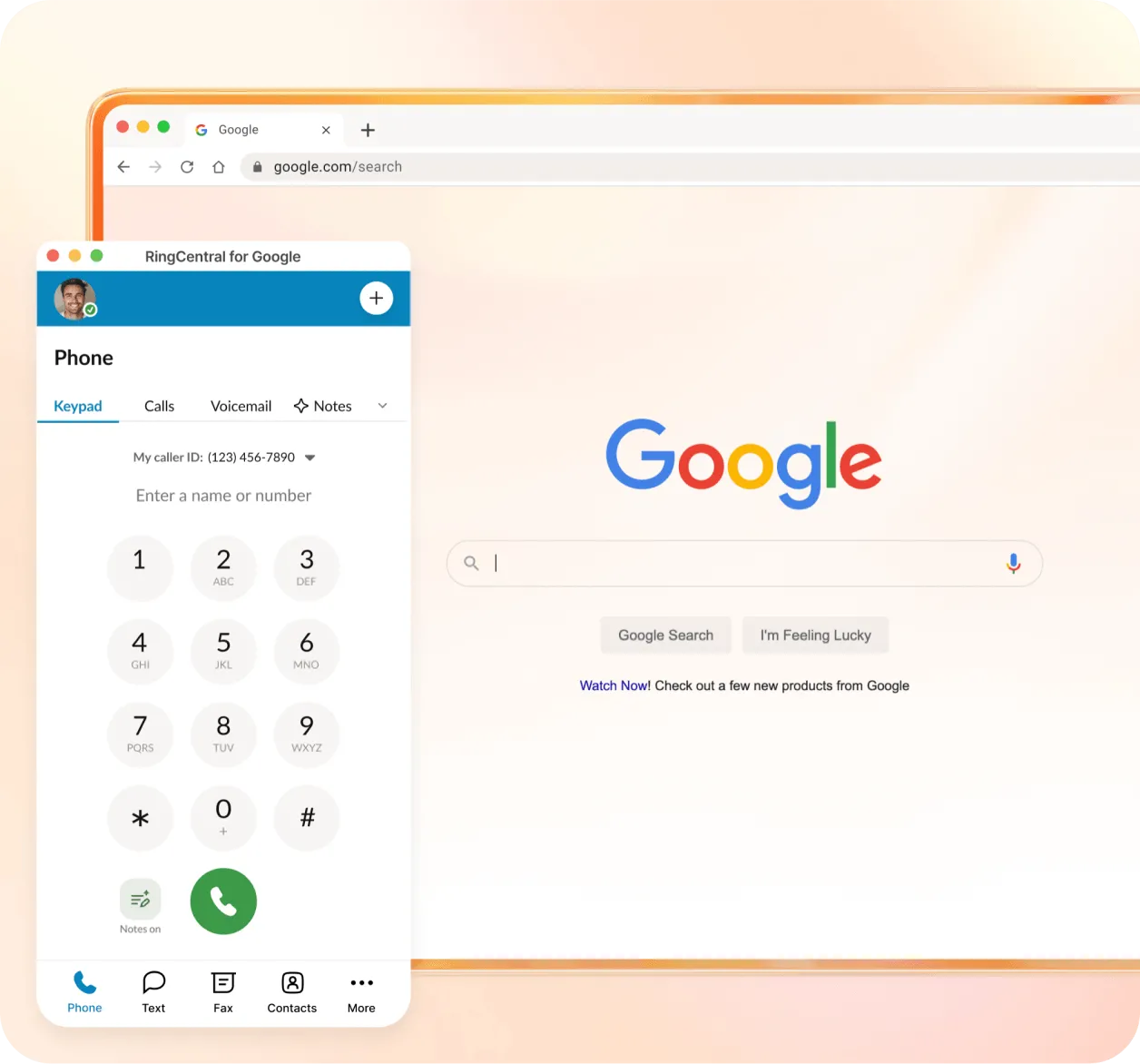
Integrate RingCentral with your apps for Google Workspace
Most of us are familiar with the apps in Google Workspace, which cover everything from email to file storage to website creation. The list of Google Workspace apps includes popular tools like Docs, Sheets, and Slides. It’s easy to see why businesses are fans of the suite.
How can you make it even better? By combining it with RingCentral. The RingCentral for Google Workspace add-on is exactly what it sounds like—it adds RingCentral tools and capabilities to the Google apps.
Through the add-on, you can make calls, send texts, view communication history, and schedule meetings directly from Gmail or your Google Calendar. When you’re logged into your Google Workspace, you can access RingCentral directly from the Add-ons bar.
What are the Google Workspace apps that you can link with RingCentral?
By linking RingCentral to your Gmail account and Google Calendar, you’ll unlock a whole lot of extra functionality within each of the apps. Let’s find out how RingCentral enhances two of the most popular Google Workspace apps for business.
Google Drive
Share files straight from Google Drive during conversations. The RingCentral integration eliminates the need to navigate away from your chat, download files, and attach them manually.
Simply connect your RingCentral and Google Workspace accounts with one click, and you'll have instant access to search and share files from Google Drive directly within RingCentral.
Stay on top of collaborative projects with automated notifications from the Google Drive Bot. This intelligent assistant keeps your team informed and ensures no important updates slip through the cracks.
The Google Drive Bot automatically sends you notifications when:
- A file is shared with you, so you can review it immediately
- Someone comments on a document you're working on, enabling real-time collaboration
- Important changes are made to shared files
By integrating these notifications directly into RingCentral, you can respond faster, keep projects moving forward, and maintain seamless collaboration across your organization—all without constantly checking Google Drive.
This file-sharing feature comes pre-installed in all RingCentral accounts and also supports integration with OneDrive, Box, and Dropbox for maximum flexibility across your existing workflows.
Gmail
Within Gmail, the RingCentral add-on enables you to access and message contacts within the context of any email conversation, on any device. You can make outbound calls and send SMS and internal messages directly from your email conversations—no need to switch applications or lose your place in the thread.
Key capabilities include:
- View user presence of your RingCentral contacts to see who's available before reaching out
- Extract contextual information within Gmail message threads, making it easier to pick up conversations without scrolling through lengthy email chains
- Access recent call history for quick reference when following up on previous conversations
- Start new email conversations directly from within a RingCentral contact card
The integration works seamlessly across all your devices, so whether you're at your desk or on the go, you'll have consistent access to your communication tools.
Google Calendar
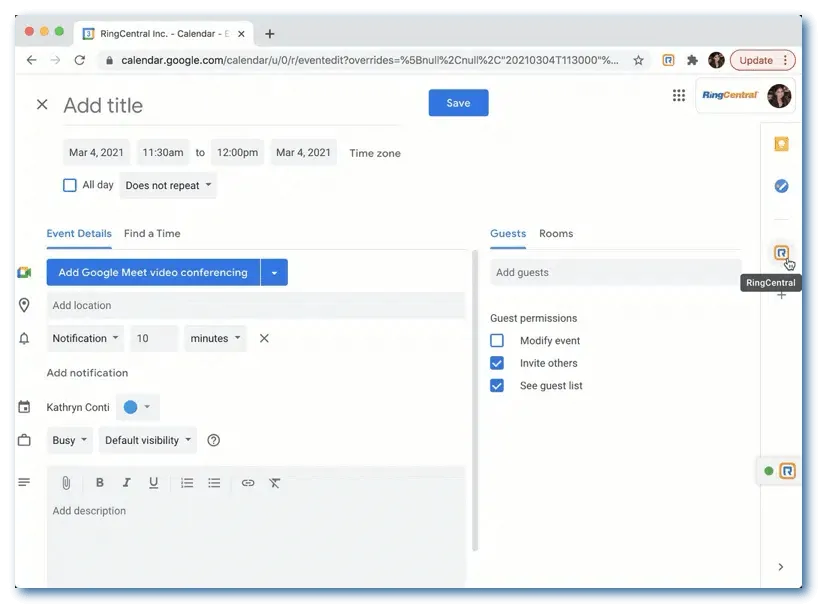
Integrating RingCentral with Google Calendar means that you can schedule—and join—RingCentral meetings or audio conference calls directly from the Calendar’s Add-on bar. You can also add a RingCentral Video meeting link when you create a Google Calendar event.
The add-on gives you the ability to configure and adjust meeting settings for RingCentral Video. For example, you might want to set up a personal meeting ID, require a meeting password, turn on end-to-end encryption, or enable waiting rooms.
You can also configure comprehensive meeting security settings directly from Google Calendar, including:
- Meeting passwords for added protection
- Waiting room functionality to control participant entry
- End-to-end encryption for sensitive conversations
- Controls for participant cameras and audio
- Screen sharing permissions
These security features ensure your meetings remain professional and protected, all configured from the familiar Google Calendar interface you already use daily.
How do Google Workspace apps work with RingCentral?
Now for the technical bit (not really; it’s super-easy!). Here’s how to set up a Google Workspace app to work with RingCentral:
- Go to the RingCentral app library, choose the Google Workspace Add-on from the list, and follow the installation instructions. (If you’re an Admin, you can install the add-on for multiple users.)
- Now open your Google Workspace, and access Gmail or Google Calendar.
- You should see the RingCentral icon on the side panel. Click it to open the add-on. If you have multiple add-ons installed, you’ll need to click the three-dot More Add-ons icon to locate the RingCentral Google Workspace Add-on.
- Click Sign in and enter your RingCentral credentials to launch the add-on. If you’re a first-time user, you’ll need to click Authorize access to complete the authorization process.
Once you’ve done this, you’ll be able to access the RingCentral functionality for Gmail and Google Calendar.
Here’s how to create an event in Google Calendar and add a link to a RingCentral Video meeting:
- In your Google Calendar, create a new event.
- In the event details, you’ll see the default Add Google Meet Video Conferencing. Open the dropdown menu and select RingCentral Video Meeting instead.
- Click Save.
- Now you can add a meeting link to the event, and a dial-in number if required.
- Access the meeting settings via the RingCentral icon in the side panel. You can do things like set up a Personal Meeting ID or turn on end-to-end encryption, turn off cameras or mute audio for participants, or limit screen sharing.
- If you’ve adjusted any settings, click Update Meeting to save them.
Benefits of Google Workspace apps linked to RingCentral
When you connect RingCentral with some of the best Google Workspace software, you’ll see an uptick in the effectiveness of communication and collaboration in a range of ways.
Help your teams work smarter in Gmail
Support more productive cross-organization collaboration
Create more streamlined and efficient workflows
More than an add-on to your business apps in Google Workspace
So, we’ve seen the key benefits of integrating RingCentral with business Google Workspace apps. But it’s more than just an add-on. RingCentral RingEX provides AI-powered unified communications, helping you work smarter in every area of the business:
A cloud phone system with advanced features
The cloud phone system at the heart of RingEX offers HD-quality cloud calling across your devices, with 99.999% uptime and top-notch security. You can switch between your mobile, desktop, and tablet in a single click, mid-call, without dropping the conversation.
RingEX comes with intelligent call management, including flexible call routing. It’s easy to set up and manage call paths based on business hours, team availability, or custom rules. You can design intuitive IVR menus, and add automated greetings and announcements.
Caller ID preview allows you to greet each customer by name, and the warm transfer feature shares context while transferring calls. If you miss a call or take a break, the system generates automated SMS replies. You can record calls manually or automatically, while managers can monitor calls and provide live coaching.
Messaging, video, fax, and more all in one place
That’s the beauty of unified communications—everything you need is on one user-friendly platform. RingEX includes business SMS (with messages optimized for open rates) and instant messaging that incorporates file sharing and dedicated folders and threads for projects, topics, and teams.
Host video meetings with automatic on-screen translations and closed captions, plus whiteboards, recordings, and customizable host controls. You can even use your app as an online fax machine to send, receive, and manage secure and confidential faxes from any device. There’s a business analytics feature, too.
You can jump on a phone or video call right from your team chat app, and switch between devices during meetings. And by using a single number for all calls, faxes, and texts—even on personal devices—you’ll simplify customer interactions and maintain your business identity.
AI-powered features to further boost productivity
With RingEX, you get your very own personal assistant, powered by AI. It will take notes for you during calls and meetings so that you can focus fully on the conversation. It will transcribe calls into searchable text, saving you time when you want to check back on what was said.
The AI assistant automatically generates complete transcripts of your meetings, and provides you with concise summaries that include key moments and action items. It will also generate dynamic highlights clips to share with others.
Condensed messaging summaries also let you catch up quickly on group chats, and gain key insights without having to trawl through the entire thread. The assistant also helps you to compose professional and personalized texts and messages—in multiple languages.
400+ integrations with your other business tools
Alongside the Google Workspace add-on, RingEX offers pre-built integrations with hundreds of other business tools. These enable you to automate workflows and sync data between the apps to boost productivity, with no need to toggle between multiple tools or manually transfer data.
Popular integrations include CRMs such as Salesforce, customer support software, analytics tools, and industry-specific apps for financial services, healthcare, legal, and retail. The Microsoft Teams integration adds high-quality telephony and AI-powered conversational insights, with no Teams Phone license required.
Can’t find your favorite app in the gallery? No problem. Build your own integration with RingCentral’s APIs, SDKs, widgets, and developer tools.