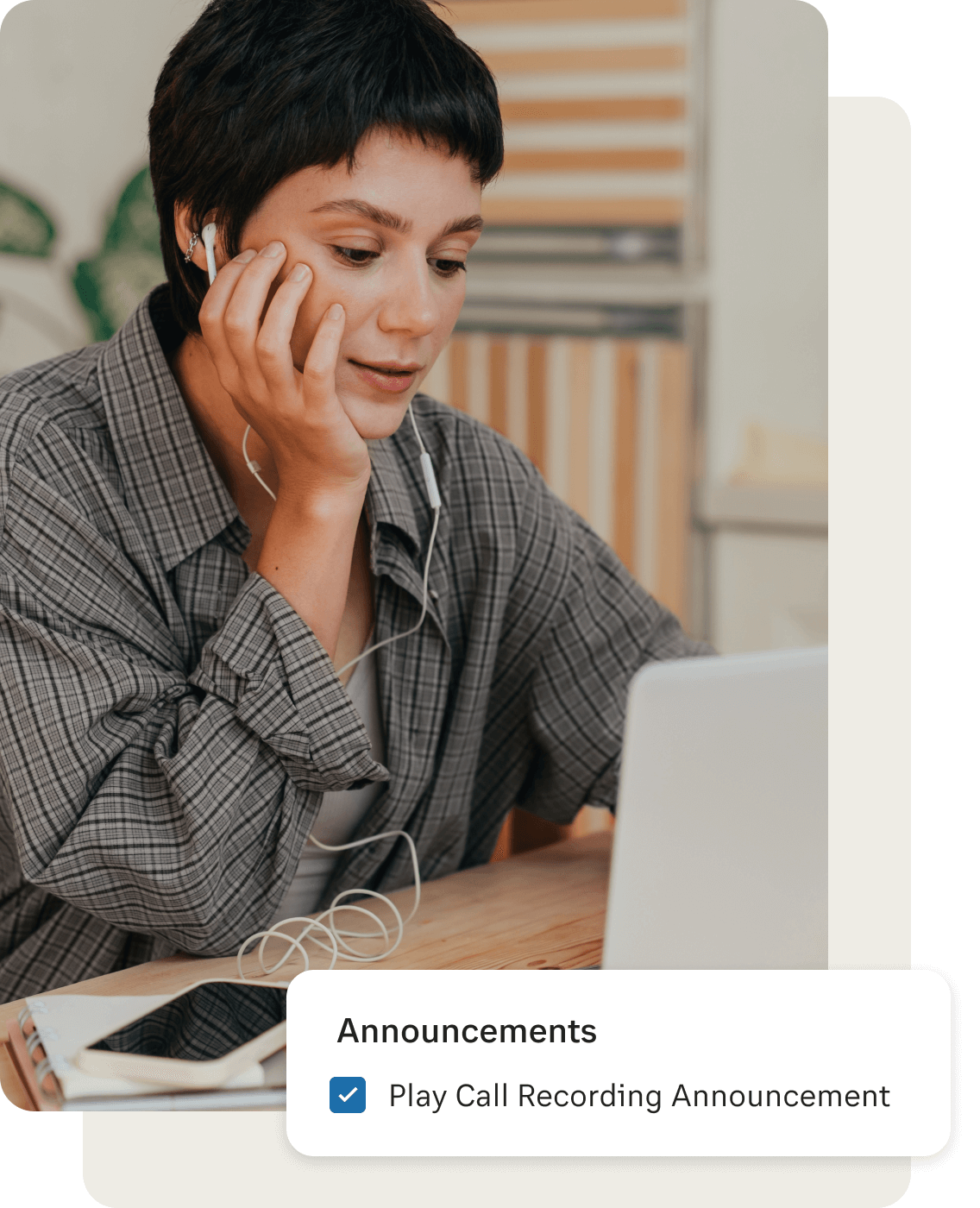
When you record calls with RingCentral, you also have the option of recording custom announcements to let your callers or call recipients know. There are two main ways to do so; via phone or with your computer microphone.
To record via phone, first, you need to open your RingCentral mobile app. From the screen, you'll see the list of icons. Click the Phone icon, then enter a new number where RingCentral can call you to record your custom greeting. Click Call Now, and you can proceed with the call recording process.
You'll receive an automated call from RingCentral detailing how to record your custom greetings. To start, press 1 to record. When you are done, press the pound (#) key. You'll hear another prompt afterward:
Press 1 - Save your custom greeting.
Press 2 - Listen to your greeting.
Press 3 - Change your greeting.
After the recording, you'll be redirected to the Call Recording Announcement section, where you can take the following actions:
To listen to your custom Automatic Call Recording Announcement, click the Play button.
To change or replace your custom Automatic Call Recording Announcement, click the Re-record button.
To download and save your custom Automatic Call Recording Announcement to your computer, click the Download button.
Click Done. You'll be redirected to the Call Recording Settings section, then click Save.
If you want to record your custom automatic call recording greeting via computer, first, you must log in to your RingCentral account.
Click on the Settings tab, then choose Phone from the list. Under the General section, Click on the Edit button of the Extension Settings. You'll be redirected to a new browser window to edit your settings.
Choose Settings, then Choose the Screening, Greeting & Hold Music tab. Once your call recording is enabled, you can click Edit and choose from the drop-down menu from Default to Custom.
From the Computer Microphone, click the record button. If you want to stop, press the Record button again. To listen to the recording, press the Play button. Then, click on the Upload button to save the custom greeting. Then, click done. You'll be redirected to the Call Recording Settings page. Finally, click Save.