
Small Business
Enterprise
Developers
Talk to an expert:(800) 574 5290
Support
Plans & PricingCompany
  1. Two types of call recording with RingEX as your call recording app
  2. How to use call recording in RingEX
  3. RingEX as a desktop call recorder
  4. RingEX as a call recorder for Android
  5. What is call recording used for in business?
  1. Home
  2. Features
  3. Call Recording

TABLE OF CONTENTS

  1. Two types of call recording with RingEX as your call recording app
  2. How to use call recording in RingEX
  3. RingEX as a desktop call recorder
  4. RingEX as a call recorder for Android
  5. What is call recording used for in business?

Products

  • RingEX
  • Team Chat
  • AI Meetings
  • Business Phone
  • Fax
  • SMS

Call recording

Choose from easy automatic or on-demand call recording with RingCentral RingEX. Help your business stay compliant, better train your staff, and improve customer service with easily accessible call recordings.
  • Choose from easy automatic or on-demand call recording with RingCentral RingEX. Help your business stay compliant, better train your staff, and improve customer service with easily accessible call recordings. Choose from on-demand or automatic call recording to suit your business needs and compliance requirements
  • Access and download up to 100,000 recordings, stored for up to 90 days
  • Customize announcements to ensure appropriate consent for recordings
  • All as part of a unified communications solution with tonnes of other features
See pricingContact sales

Get call recording & a whole lot more from RingCentral

Support agent using automatic call distribution (ACD) to route customer calls efficiently

Even with the growing popularity of other communication channels, phone calls are still a vital part of operations for many businesses. Having access to easy-to-use call recording is hugely beneficial for companies that want to improve customer service or staff training, make dispute resolution simpler, and stay compliant with relevant laws and regulations.

Using RingCentral RingEX as your business phone system means you can choose from either automatic or on-demand call recording. Both options are easy to set up and use, and you can twin them with flexible announcement choices to ensure you get the right consent for recording. With up to 100,000 call recordings stored for up to 90 days, you can access all the useful insight within right from your business communications platform. The same place you’ll find your business SMS, team messaging, and more. 

Everything you need from a call recorder

RingCentral RingEX is a lot more than a phone call recording app. It’s a truly unified communications platform that can help you seamlessly manage all your business communications. That said, it does still boast all the must-have features of the best call recording apps:

Easy-to-set-up call recording software features

Enable automatic call recordings for all incoming calls to departments or set up automatic phone recordings for one or multiple users in just a few clicks.

If you opt for on-demand call recording, you can also quickly select incoming and outgoing calls to record.

Downloadable enterprise call recordings

Activate the call recording feature for your account, and it will store up to 100,000 business recordings per account. Easily access and download these files individually or in bulk.

Need some help reviewing all those important calls? You’ll also get transcripts of your phone calls—not something you get from all apps to record phone calls.

Flexible call recording option announcements

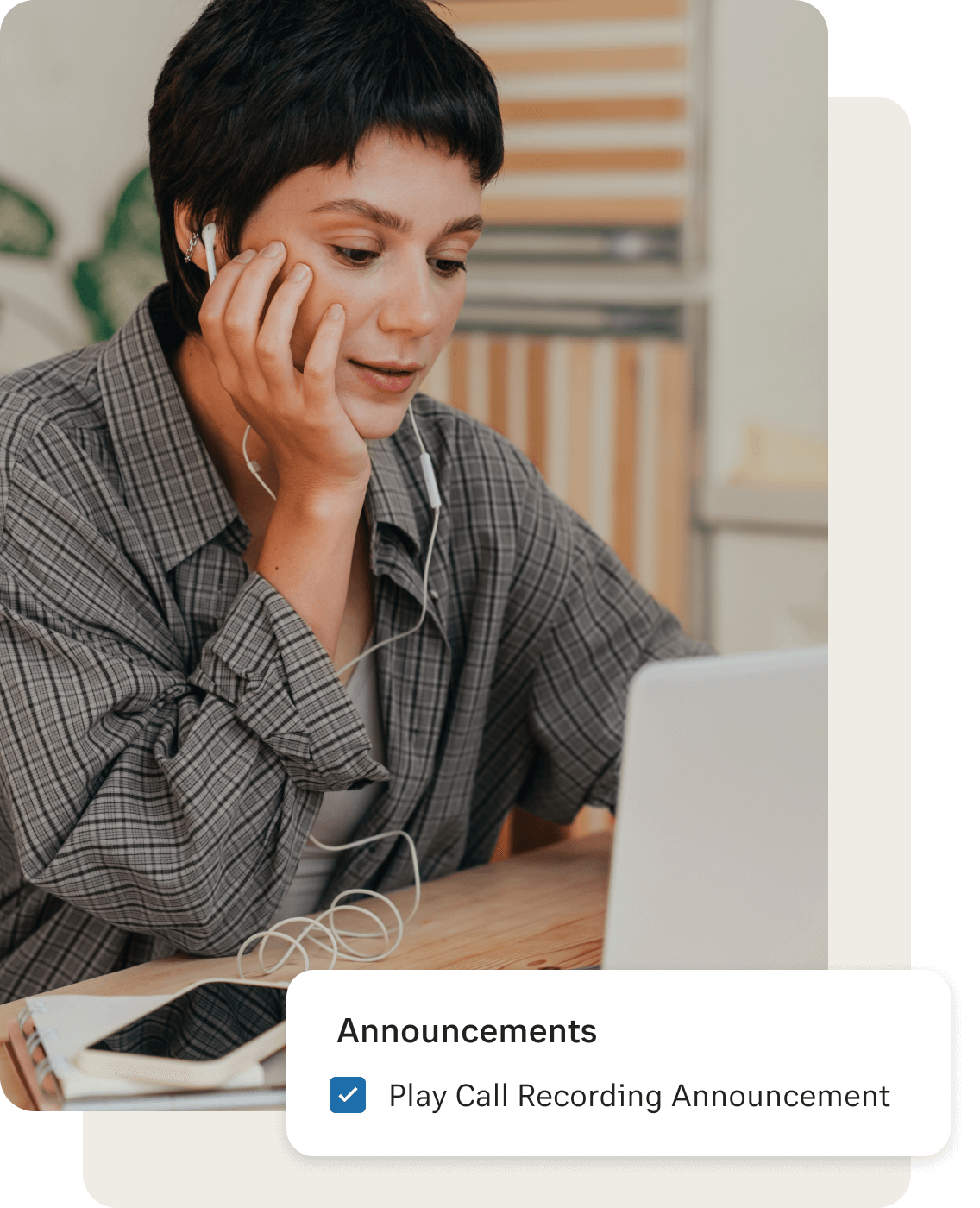
Stay fully compliant with any and all relevant legislation, by using either default or custom call recording announcements.

Easily set those announcements to play on whichever calls you need and ensure all parties are aware you’re recording and provide their consent.

Works across devices

Activate call recording across all iOS and Android devices to stay compliant for all business calls on the RingCentral app, wherever you are.

Or record calls on desktop and access your recorded phone conversations in your call logs.

All as part of a unified communications solution

Dedicated call recording solutions are all well and good, but you get far more when you choose RingEX.

On the same platform as you get automatic and on-demand call recording, you can also handle business SMS, team messaging, and plenty more besides.

All your communication channels, too, are supported and boosted by advanced AI features.

Two types of call recording with RingEX as your call recording app

Use RingEX as your business call recording system and you can choose between on-demand and automatic call recording to suit different scenarios.

On-demand call recording

Record your phone calls by simply pressing a button to start and stop the recording when you want, so no one misses any critical information during an interaction. Callers will hear a notification when the call recording starts and stops. As an admin, you can customize the call recording announcement callers will hear before recording any business call.

Automatic call recording

Meanwhile, the Automatic Call Recording (ACR) option enables you to record incoming and outgoing calls automatically. When this call recording feature is active, there's no need to worry about missing anything important from any phone call. You’ve got an automatic phone call recorder that captures everything, right then and there. You can even play back the call recordings online or download the recorded conversations to your computer. To activate each user, use the RingCentral admin account.

How to use call recording in RingEX

So, how does call recording work as a RingCentral user? Fortunately, as with most things on the RingCentral platform, it’s easy and intuitive. The first step is for an admin of your RingCentral account to turn on on-demand call recording, automatic call recording, or both.

To turn on on-demand call recording:

  1. Head to the Admin Portal and then select Phone System from the top menu.
  2. Got to Auto-Receptionist and then General Settings.
  3. Head to your company’s Main Site and then select Call Recording.
  4. Toggle Enable On-demand Call Recording on.
  5. You then have an option to employ a custom voice message to inform callers you’re recording calls, either at the start or the end of the call. To do so, click Edit under either Announcement on Start or Announcement on Stop.
  6. Select Custom and then follow the instructions to record your custom message either by phone, computer microphone, or by importing a file. Then select Done.
  7. Select Save, and you’re done turning on on-demand call recording.

To turn on automatic call recording:

  1. Follow steps 1-3 above.
  2. Toggle Enable Automatic Call Recording on.
  3. Select Yes in the confirmation window.
  4. Follow the instructions to choose your optional settings regarding call recording tones, announcements, and muting.
  5. You then have an option to employ a custom voice message to inform callers you’re recording calls, at the start of the call. To do so, click Edit under Call Recording Announcement.
  6. Select Custom and then follow the instructions to record your custom message either by phone, computer microphone, or by importing a file. Then select .

RingEX as a desktop call recorder

Here’s how to record phone calls on the RingCentral desktop app:

  1. When you’re in a live call, click More
  2. Then, select Record from the dropdown menu
  3. A recording icon will appear on screen to confirm the recording
  4. To stop the recording, either click the recording icon or re-open the More menu, and click Stop recording.

But how do I record a phone call on my mobile device, we hear you ask. Fortunately, with RingCentral it’s just as easy-regardless of your smartphone’s operating system. RingEX as a call recorder for iPhone

Here’s how to record phone calls on iPhone using the RingCentral mobile app:

  1. When you’re in a live call, tap More
  2. Then, select Record from the dropdown menu
  3. A recording icon will appear on screen to confirm the recording
  4. To stop the recording, either tap the recording icon or re-open the More menu, and tap Stop recording.
  5. Then, tap Stop in the popup to confirm.

RingEX as a call recorder for Android

RingCentral doesn’t discriminate against those users who don’t have Apple devices. Android call recording is just as easy:

  1. When you’re in a live call, tap More
  2. Then, select Record from the dropdown menu
  3. A recording icon will appear on screen to confirm the recording
  4. To stop the recording, either tap the recording icon or re-open the More menu, and tap Stop recording.
  5. Then, tap Stop in the popup to confirm.

See RingEX in action

View demo

What is call recording used for in business?

Business phone call recording is something that’s vital for a wide array of organizations, across different industries. Here are just a few common examples of when companies may need to record calls:

Advanced fax logo

Legal compliance and documentation

Businesses must comply with federal laws once they activate call recording features. In some instances, these recordings can be used in court. Hence, businesses must seek consent from the callers and inform them that your company does record phone calls.

Most states require one-party consent only, but others require all-party consent before you record incoming phone calls. To seek your clients' permission, and to comply with the rules, your business phone system must have a trustworthy call recording feature.

white contact center icon

To monitor phone calls and train your staff

Call recording FAQs


RingCX
  • Webinars & Events
  • Features
  • Phones and headsets
  • Partners

    • Global service providers
    • Channel partners
    • ISV partners
    • Hardware partners
    • Connectivity partners
    • Affiliate partners
    • Strategic alliances

    Open Ecosystem

    • Developer platform
    • APIs
    • App gallery
    • LLM Plugins & MCPs

    Learning

    • What's new
    • Resource center
    • Blog
    • Customer stories
    • Newsroom
    • Events & Webinars

    Company

    • About Us
    • Leadership
    • Investor relations
    • Ventures
    • Trust Center
    • Corporate Responsibility
    • Careers

    Help & Support

    • RingCentral app login
    • Admin portal login
    • Customer support
    • Download app
    • View demo
    • Contact sales

    How can we help? Contact us

    LegalPrivacyCookie NoticeSite MapAccessibilityContact Us
    Done
  • You’ll then want to set the users, groups, and types of calls to record. Select Edit under Extensions to Record. Then use the tabs at the top of the page to make your choices regarding, users, extensions, types of calls, and more.
  • Once you’re done, select Save.
  • For automatic call recording, that’s the end of the story. With the on-demand alternative, you need to know how to record a call when the need arises—i.e., how to turn on the on-demand recording.

    Businesses can also use voice recorders and call recording apps to train employees and monitor their performance in the workplace.

    With a call recording, you can go back and explain to your team what improvements to make and how they can handle different situations encountered.

    With a call recording app, you can check whether your team offers high-quality phone conversations to your clients.

    report icon

    Evidence for dispute resolution

    Organizations with an automatic call recorder can use their audio recordings to resolve disputes.

    You can always refer to these call recordings to clarify phone conversations. A customer with a concern about how the call was handled? A supervisor can check the facts.

    tasks icon

    Improve customer Service

    Another of the benefits of call recording for businesses is that it can help to improve your customer service.

    You can use recorded conversations to train new staff and also as an opportunity to find patterns in customer behavior, which will help you better anticipate their needs going forward.

    Cookie Preferences
    Do not sell or share my personal data
    © 2026 RingCentral, Inc. All rights reserved.
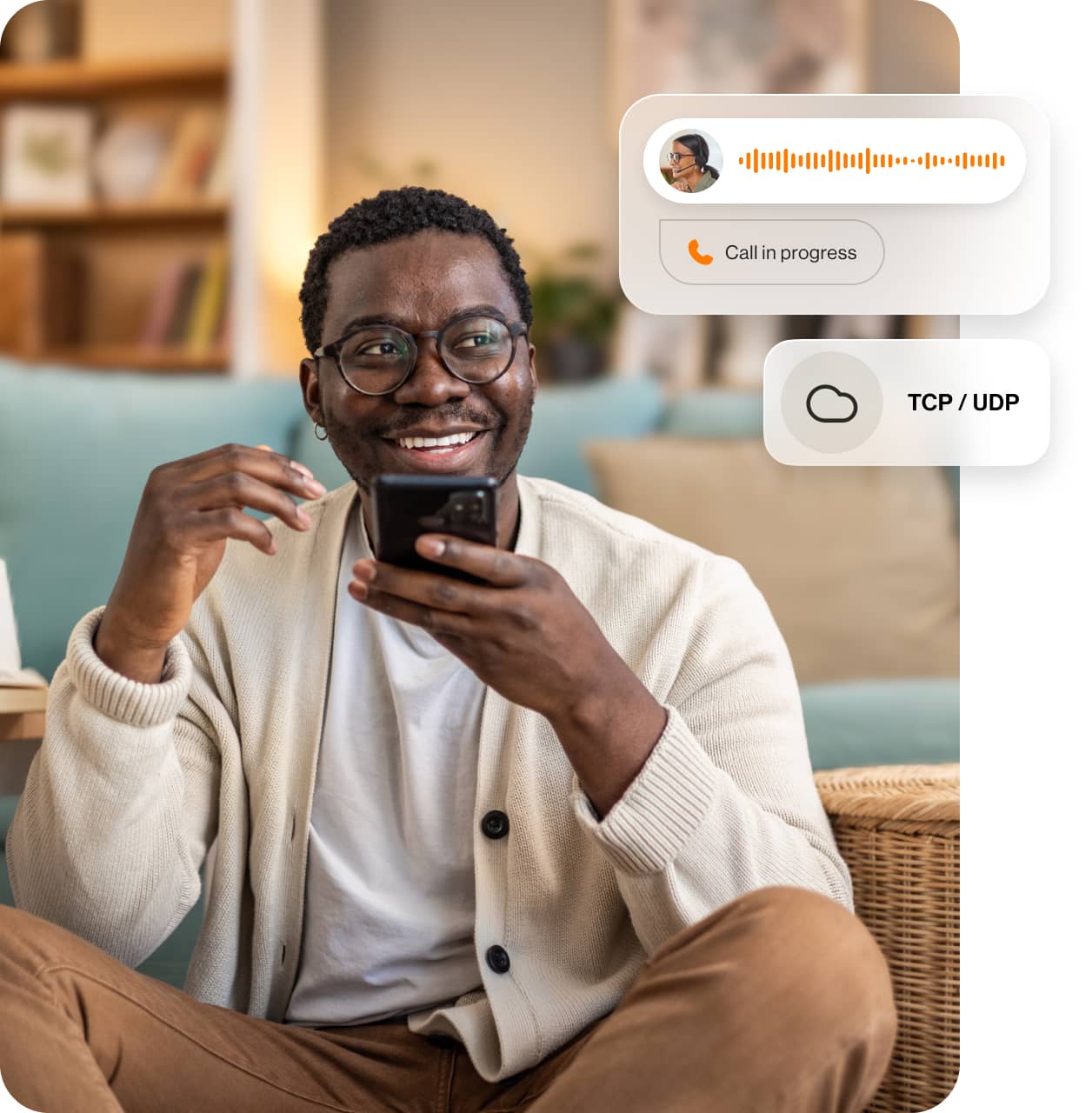
    A smiling man sitting on the floor is in a recorded phone call on his mobile phone
    A woman is looking at the call transcript on her laptop
    A woman with earphones connected to her mobile phone while looking at her laptop is listening to the call recording announcement
    A couple of contact center agents making outgoing call while on a white desk
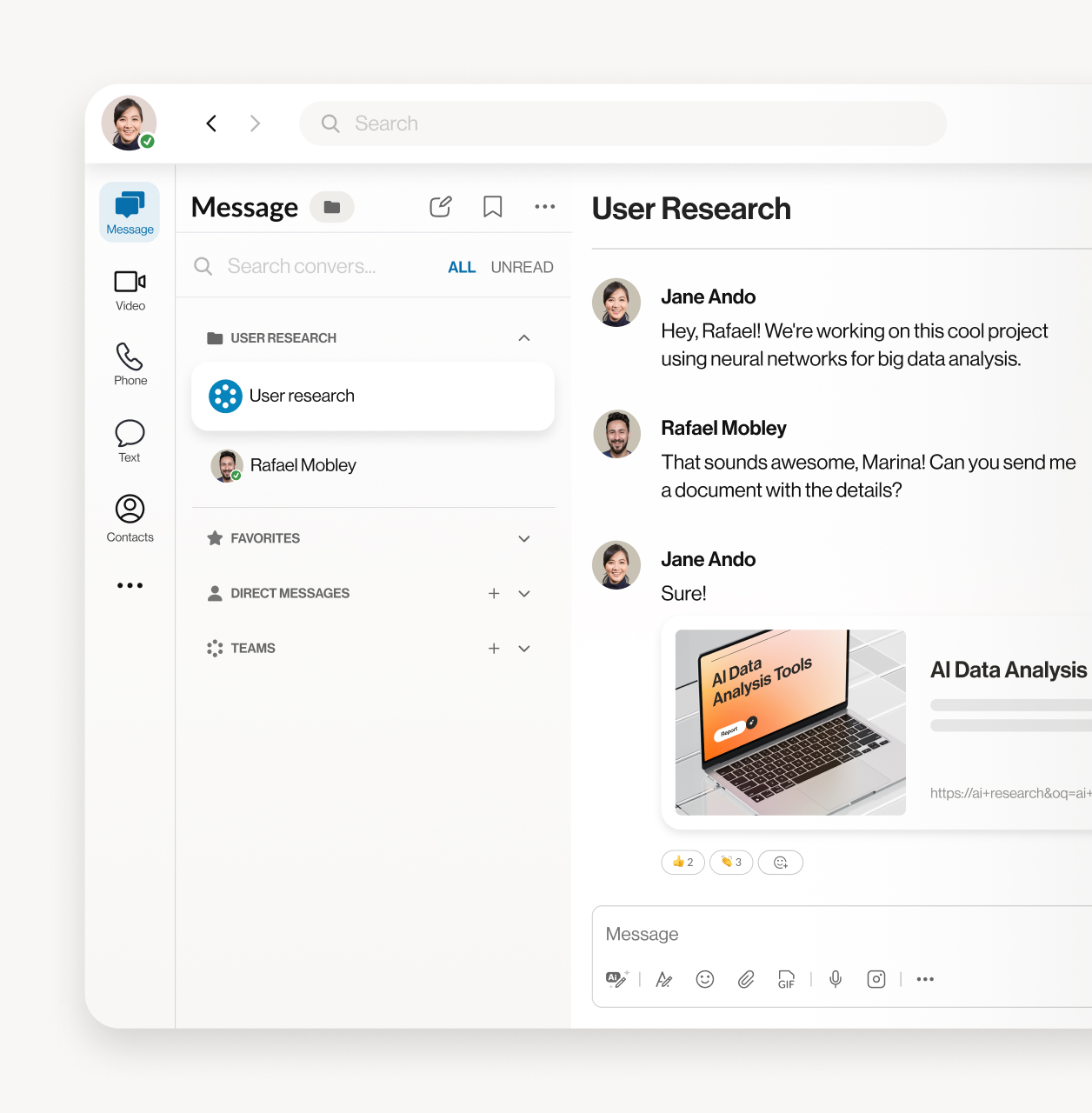
    The messaging tab of the RingCentral App
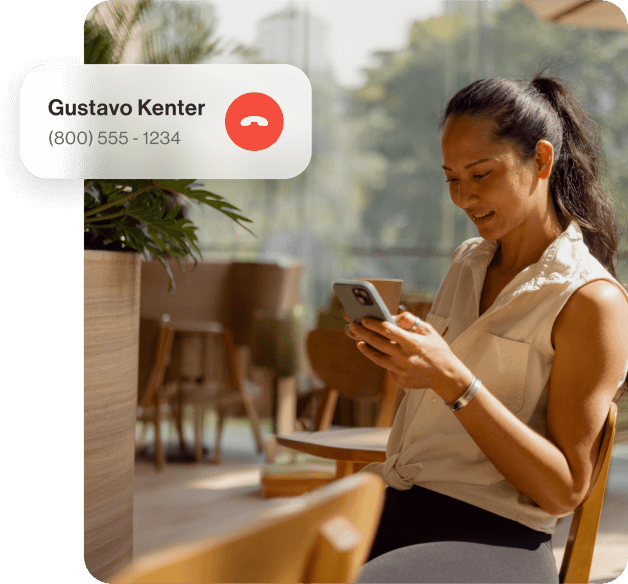
    A lady sitting on a wood chair receives a call from Gustavo Kenter
    Country

    By clicking the button, you consent to receiving calls and emails from RingCentral. Calls may be made using automated technology.

    Privacy Policy
    *Required fields